Setting up bank feeds
Last updated: August 12, 2026
Macquarie
Follow the steps below to connect your Macquarie Cash Management Account (CMA) or Accelerator account to Xero via direct bank feeds.
If you haven’t already, add the Macquarie bank account to Xero.
Locate the bank account on your Xero homepage or in the Accounting menu, select Bank accounts.
Click ’Get bank feeds’.
If you do not already have a completed form, click Download form and print a copy
Sign the form by hand as Macquarie rejects digitally signed applications.
Scan the signed and save as a PDF or JPEG format.
Either select:
Upload form – If your form doesn’t successfully upload, an error message will appear. Follow the prompts to resolve it
I'll do it later – You can upload your form at any time by clicking the Get bank feeds button next to the account on your homepage.
(Optional) Click Edit to set a future start date for your feed.
Click Send form to bank.
Next Steps
The bank feed will typically be activated within 10 business days after the application form is accepted by Macquarie.
You will receive an email notification once the bank feed is activated.
Transactions will appear in Xero every Tuesday to Saturday by 12pm (AEST).
Xero will be in touch if your application form isn’t accepted by the bank. If you haven’t heard from Xero in 10 working days, contact Xero support.
Ebury
Follow the steps below to sync your Ebury account with Xero
Reach out to Primary over email or Slack and inform us you would like to connect your Ebury account with Xero.
Primary will liaise with Ebury and set you up as a user on Ebury Online.
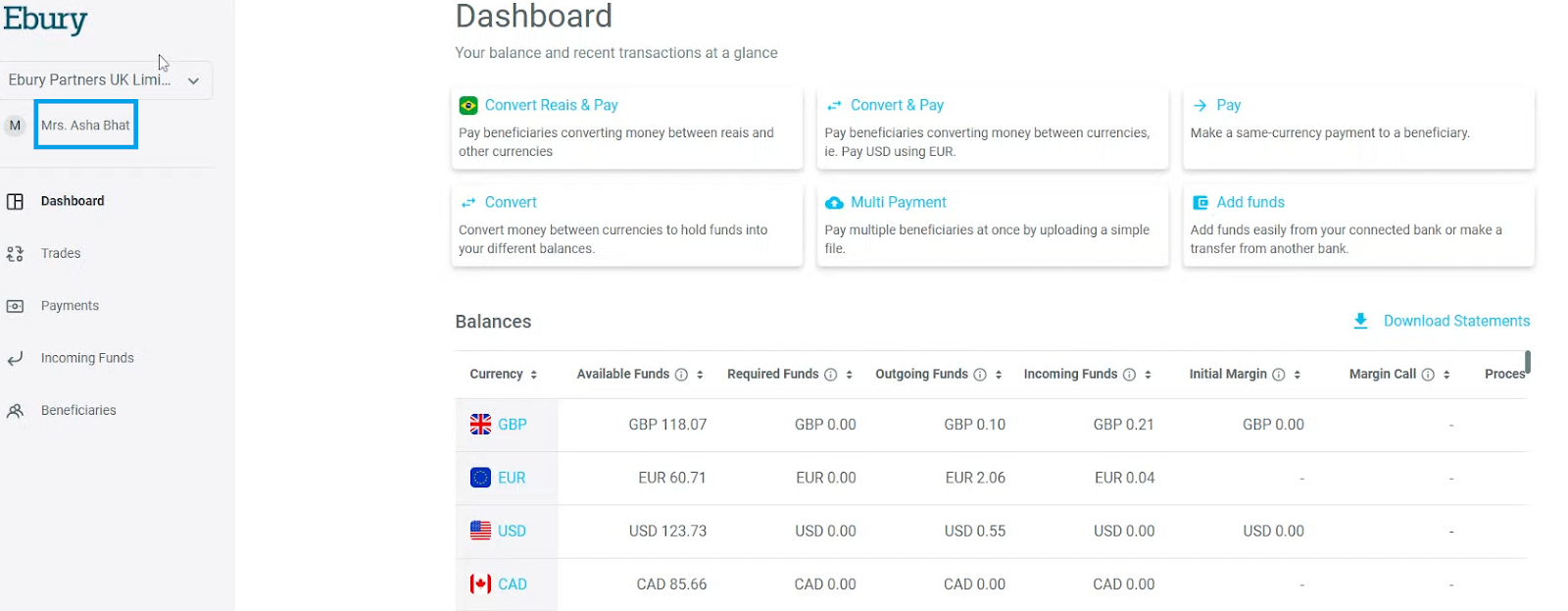
Once you are set up, log in to Ebury 'Dashboard', on the left-hand side, click on the contact's name.
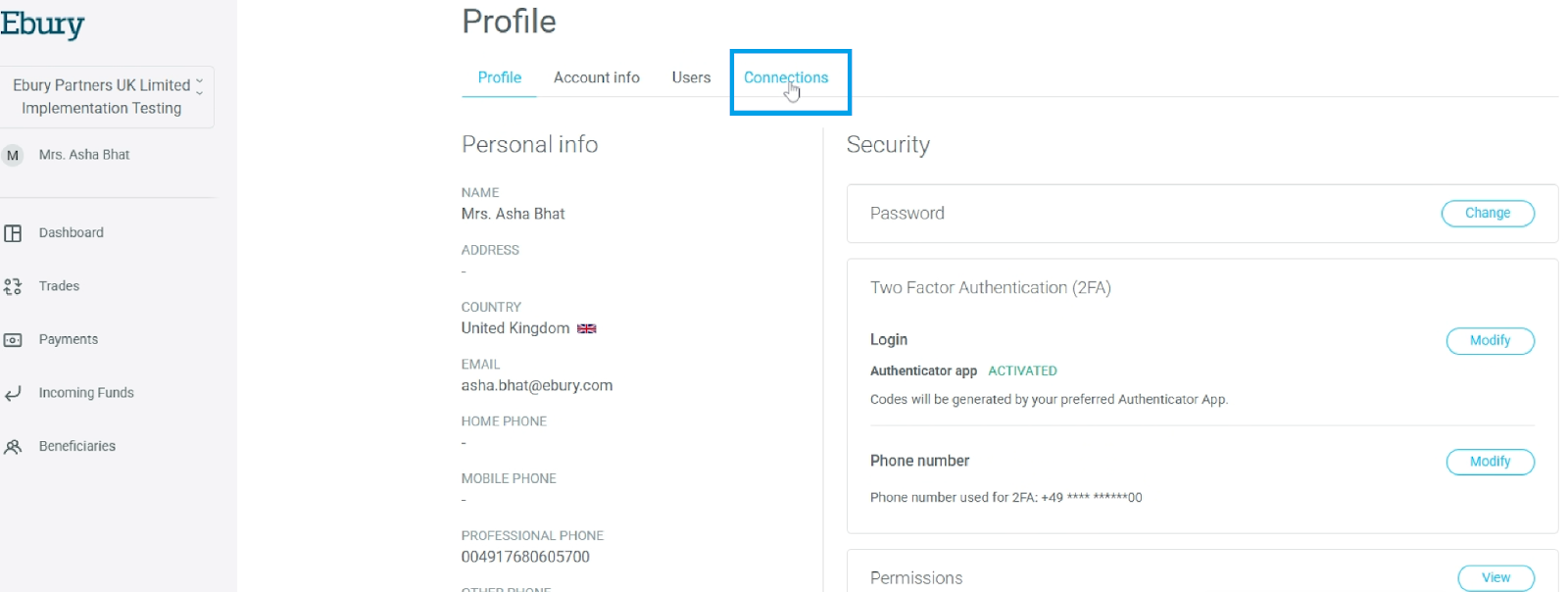
Click “Connections”. This is where you set up the Xero connection.
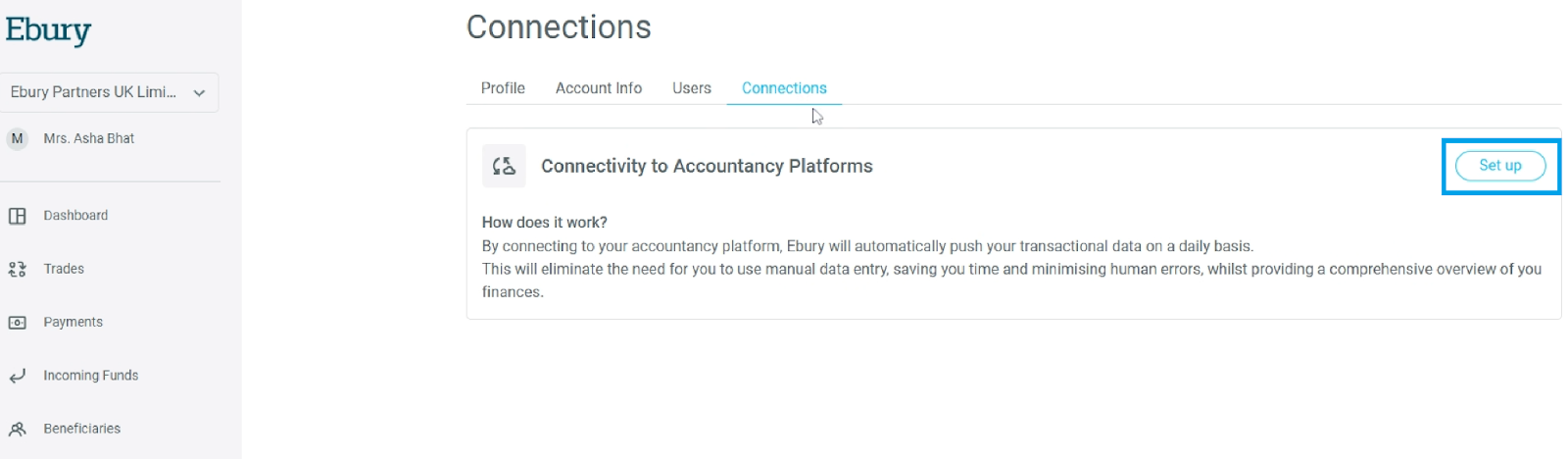
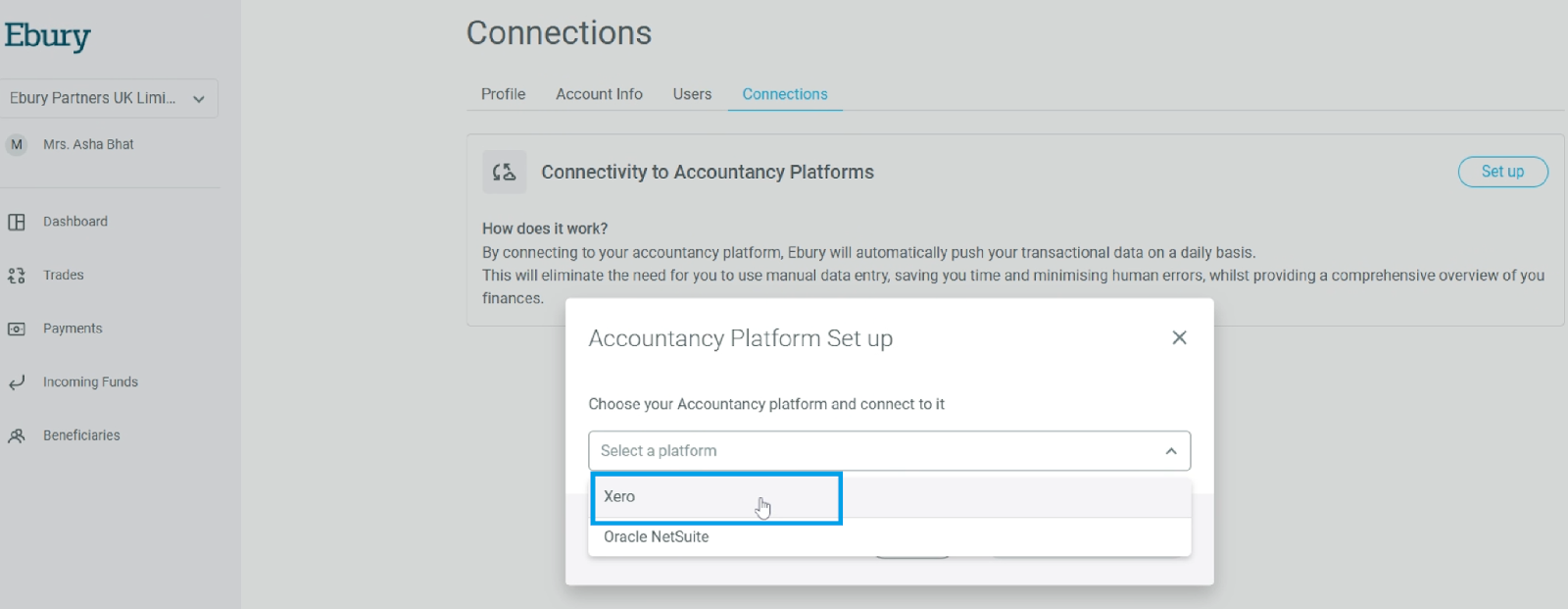
Click on the "Set up" button to get started.
Click on "Xero" from the drop-down list.
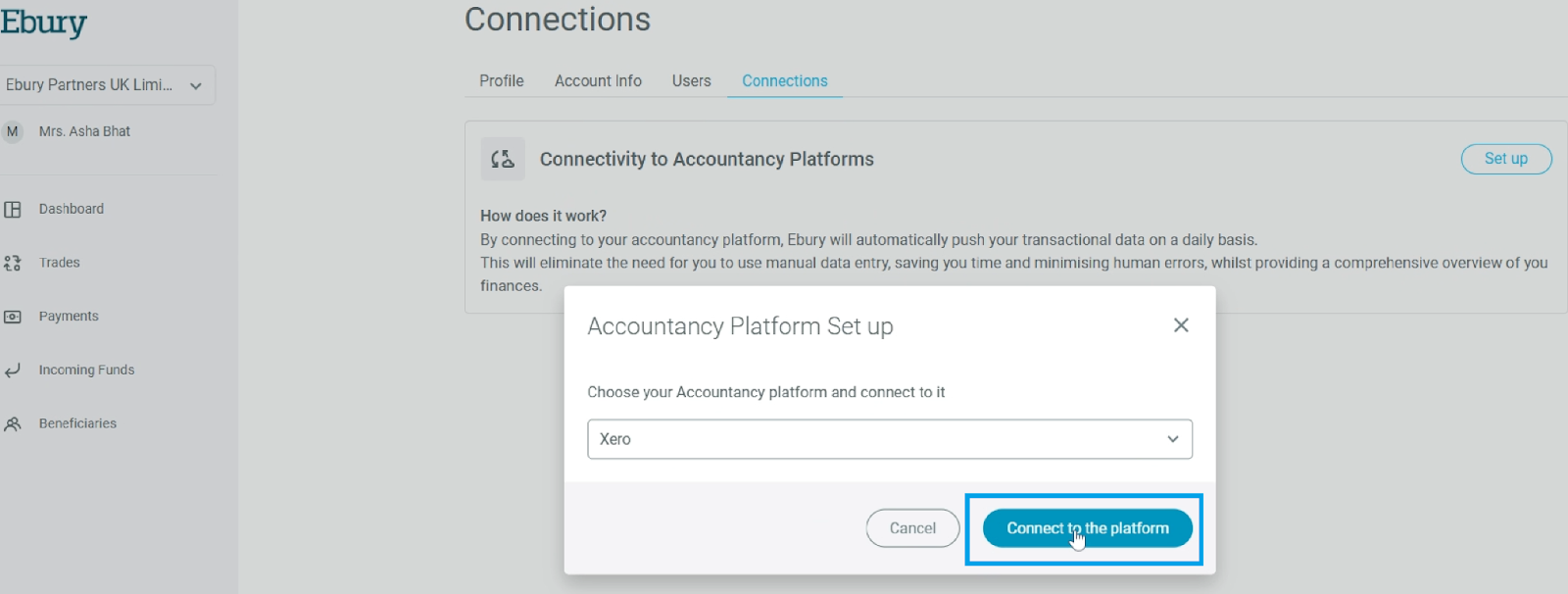
Click on "Connect to the platform". This will open a new browser tab. If you have a pop-up blocker on the browser, then the new page won't open. Unblock the page from the pop-up blocker to continue.
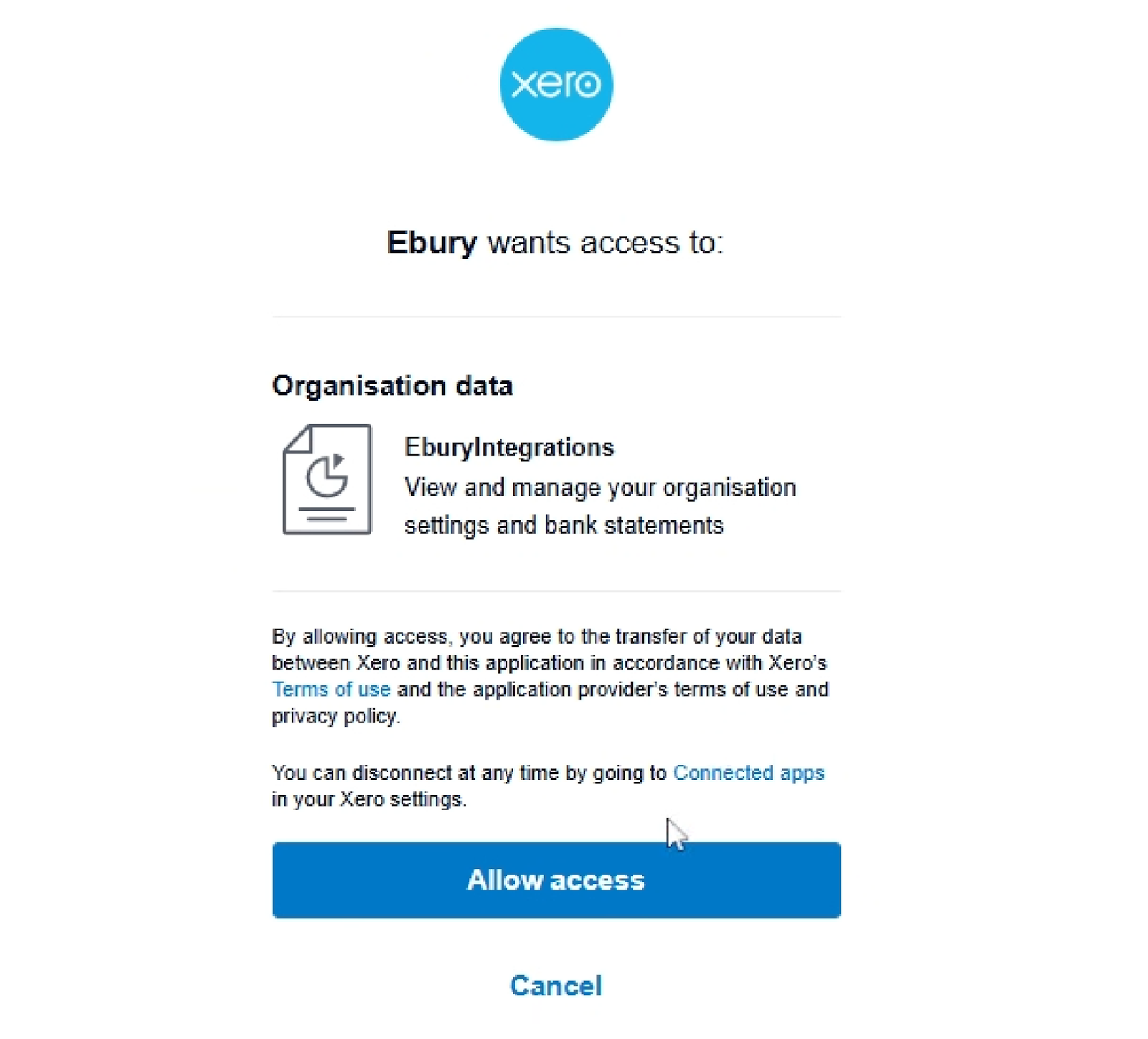
On the Xero authentication page, you might be asked for your Xero credentials. Once the authentication is completed successfully, if you have multiple organisations on Xero, you will be asked to select one of them. Pick the relevant organisation; you will see the page to provide your explicit consent for Ebury to push bank feeds to Xero. Click on the “Allow Access” button.
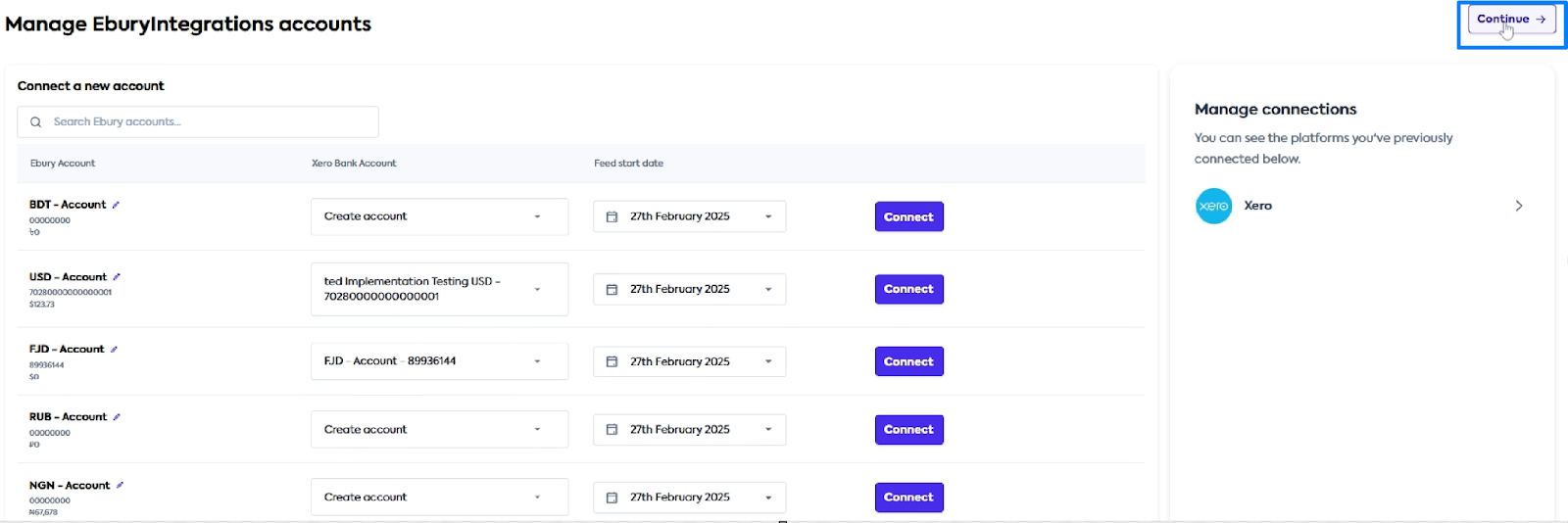
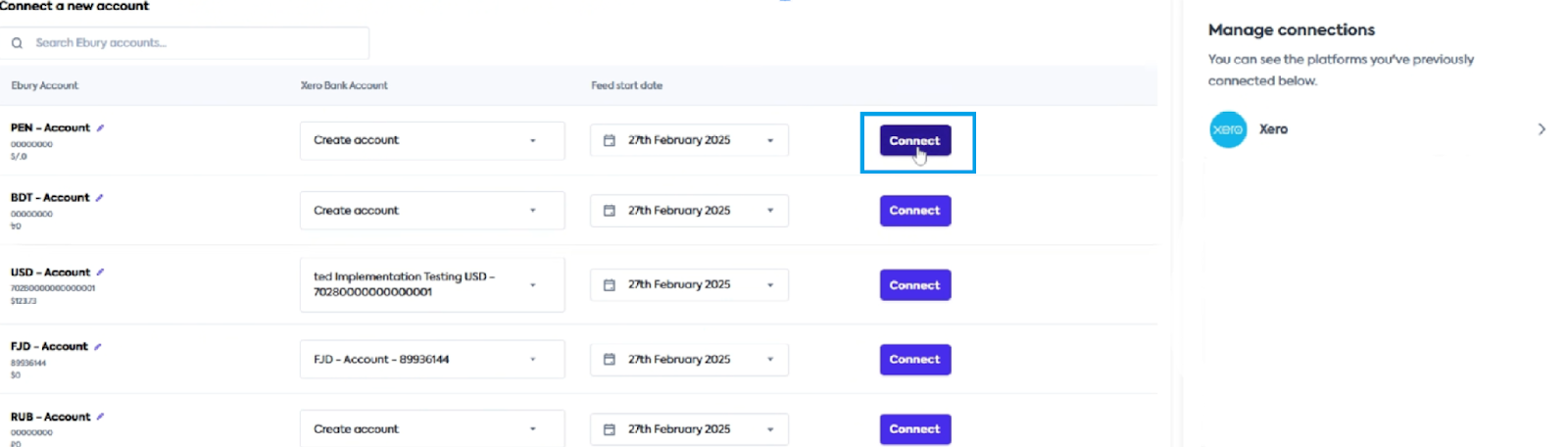
On the accounts mapping page, select the necessary Ebury account and map it to a Xero bank account account. If you don't have an Ebury account in Xero yet, select "Create account", and the system will create one on the fly. Ebury will push data to the mapped bank account in Xero. Select a 'Feed Start Date'. This will tell Ebury the date you want to sync the transactions. The feeds can go up to one year in the past.
Navigate to the top until you see the "Continue" button. You will be forwarded to a page that instructs you to close the window since this process is completed.