Moving funds between accounts in different currencies
Last updated: September 3, 2026
This article explains how to move money from an account in one currency to an account in a different currency, for example from an AUD account to a USD account. The conversion is done through Primary FX.
There are two ways to do this:
Book an FX trade. You choose the sell and buy currency, lock a rate, and tell Primary which account to fund the trade from and which account to settle into. Use this when you want to see and confirm the exact rate before anything moves.
Create a transfer between the two accounts. You pick a source and destination as you would for any transfer, and Primary adds the currency conversion to the execution plan. Use this when you just want the money to end up in the other account and are happy for Primary to handle the conversion.
Both methods create an FX trade that you can track under FX > Trades.
Before you start
Primary FX must be set up for the entity. The entity needs FX wallets in both the sell and buy currency. If FX is not set up, the Book a trade page redirects you to FX onboarding, and the transfer flow shows "Cross-currency transfers require FX accounts" with a link to get started.
You need the FX trading permission. Without it, the trade page shows "You don't have permission to request FX quotes" and the Convert option is disabled. Ask an admin in your organisation to grant it.
Markets must be open. If your FX provider's market is closed you will see "Sorry, markets are closed right now". You can still create a transfer, and Primary will execute the conversion once markets reopen.
Method 1: Book an FX trade
Step 1. Open the new trade page
Choose any of the following:
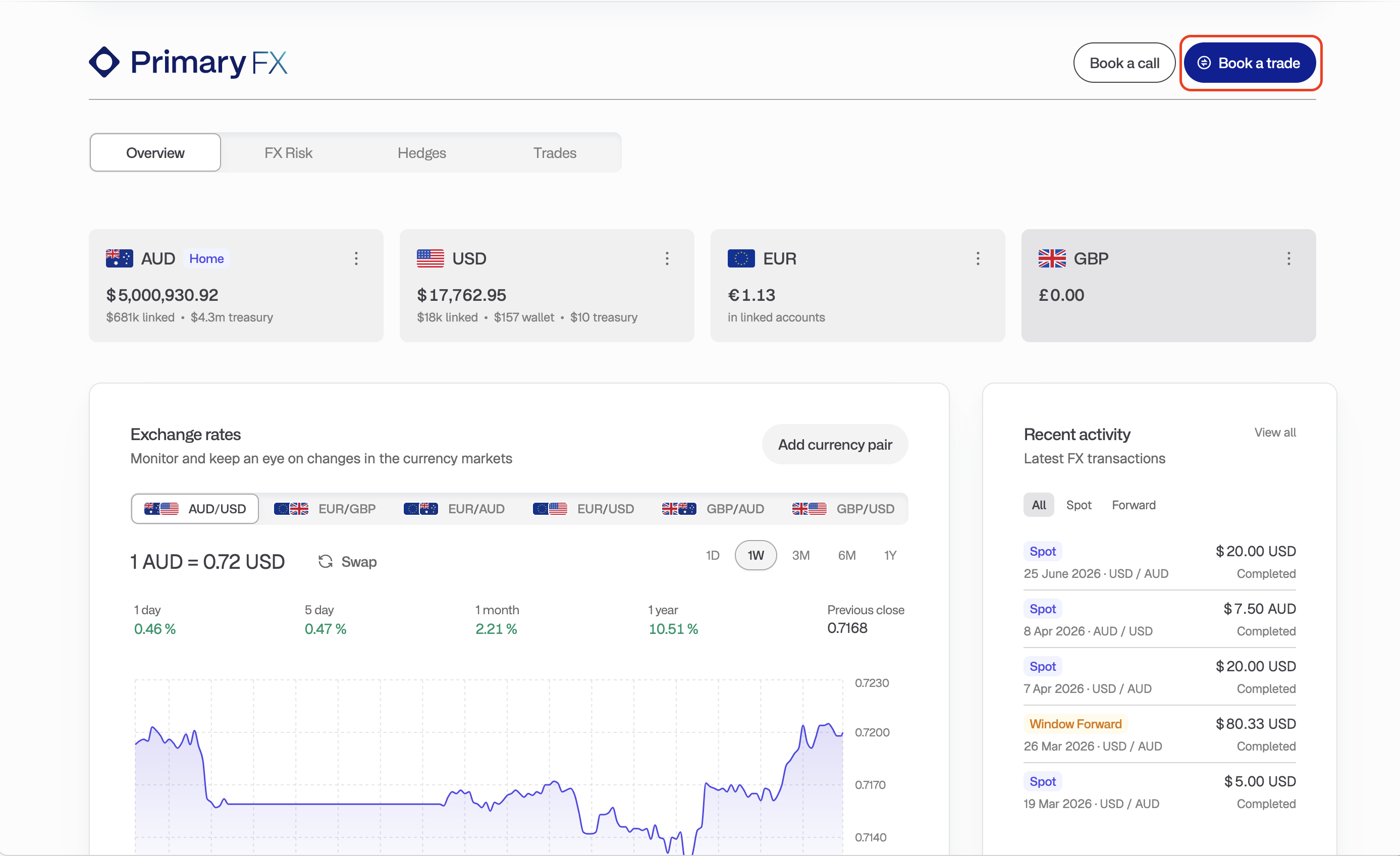
Click FX in the left navigation, then Book a trade at the top right.
On the FX overview, open the menu on a currency balance card and choose Convert AUD to USD (the currencies shown match the card). This pre-fills the sell and buy currency.
Step 2. Choose the entity (if you have more than one)
If more than one of your business entities trades FX, a Trade as dropdown appears at the top of the page. Pick the entity that owns the accounts you want to move money between.
Step 3. Enter the trade details
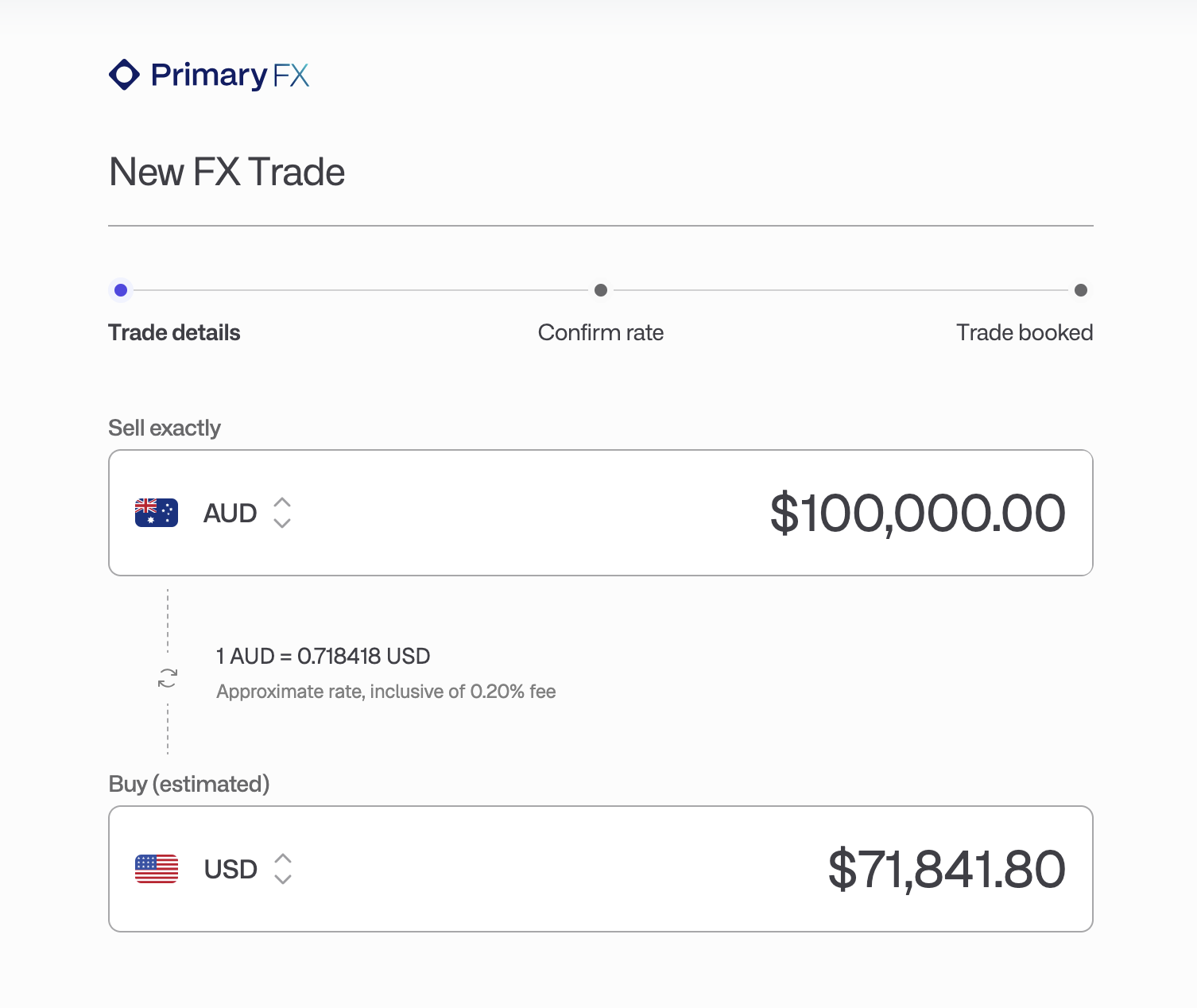
The page shows two boxes: one for the currency you are selling and one for the currency you are buying.
In the top box, pick the sell currency and enter the amount. The label reads Sell exactly, and the buy box shows an estimated amount.
If you would rather fix the amount you receive, click into the amount in the bottom box. The labels switch to Buy exactly and Sell (estimated).
Between the two boxes you will see the current rate, for example
1 AUD = 0.650000 USD, marked as an approximate rate and inclusive of your organisation's FX fee percentage.
The sell and buy currencies must be different. Picking the same currency in both boxes clears the other one.
Step 4. Choose where the funds come from
Once you have a currency pair and an amount, a Source funds from card appears. Primary pre-selects an account in the sell currency that has enough balance and can be drawn on quickly. Click Change to pick a different one.
In the account picker:
Only Primary-managed accounts in the sell currency are listed.
Accounts without enough balance are greyed out with Insufficient balance.
Accounts with a notice period of three or more days are greyed out with Insufficient liquidity. Transfer the funds to a more liquid account first if you want to use that money.
Deposit AUD into Primary (with your sell currency) lets you fund the trade from outside Primary. If you choose this you must deposit the sell amount into your FX wallet within two business days, and the picker warns you about this.
Step 5. Choose where the funds settle
The Settle funds into card defaults to your FX wallet in the buy currency. Click Change to send the converted funds somewhere else:
Any Primary-managed account in the buy currency.
A saved beneficiary account in the buy currency, for an external payout.
Click Continue to rate confirmation.
Step 6. Confirm the rate
Primary requests a firm quote. The Rate panel shows the rate in both directions, the fee percentage it includes, and a countdown labelled Rate expires in. Above it, the conversion card shows the amounts, the time the rate was quoted, and Estimated settlement by with the value date.
If the countdown reaches zero the panel shows Rate expired and a Refresh button. Refresh to get a new quote. The trade cannot be booked on an expired quote.
Below the rate you will see the funding conditions for your trade. They depend on where the money is coming from:
Where the money is coming from | What Primary tells you |
|---|---|
A Primary account, and your FX wallet already holds enough in the sell currency | The trade executes on the value date. The transfer from your chosen source account starts within the next business day. |
A Primary account, and your FX wallet does not yet hold enough | The trade executes when funds arrive in your FX wallet. Primary moves the money from the source account, and the conversion runs once it lands, on or after the value date. |
An external deposit | Funds are required within two business days. Additional charges may apply if they are not received in time. |
Accepting the quote enters your entity into a contract with Primary's FX provider for that trade, and this is stated on the page. The provider name shown is the one attached to your entity (Ebury, Visa Direct, or Corpay).
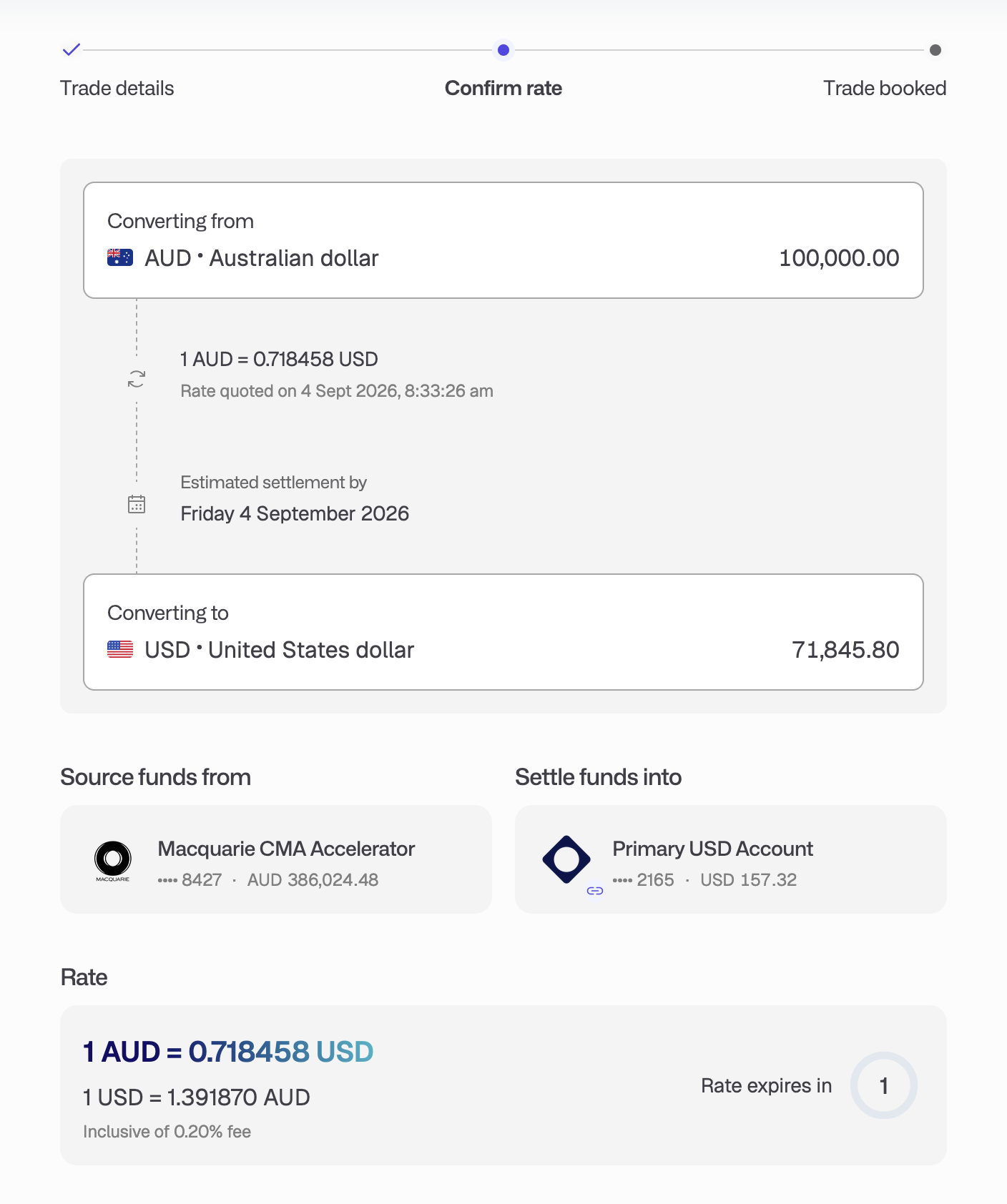
Click Confirm rate & book trade.
Step 7. Trade booked
The final step shows the trade with the accepted rate and the time it was accepted. Click Open FX trade to go to the trade's detail page.
What happens next
Primary creates a group of transfers for the trade, all dated on the value date:
From your source account into your FX wallet in the sell currency (skipped if you funded from the wallet itself or an external deposit).
The conversion from the sell-currency wallet to the buy-currency wallet.
From the buy-currency wallet to your chosen destination account, or a payout to the beneficiary.
The trade status moves from Placed to Open and then Completed. If it is cancelled or voided you will see that status instead.
If the trade is still waiting on money that has not arrived, the trade page shows a Deposit required alert with the exact sell amount and a View deposit details button. Use it to see the deposit instructions for your FX wallet.
Method 2: Create a cross-currency transfer
Step 1. Open a new transfer
Click Move funds in the top bar and choose Transfer.
Step 2. Pick the source and destination
Under Source, pick the account the money is coming from. Only accounts that support outbound transfers are listed.
Under Destination, pick an account or beneficiary in a different currency.
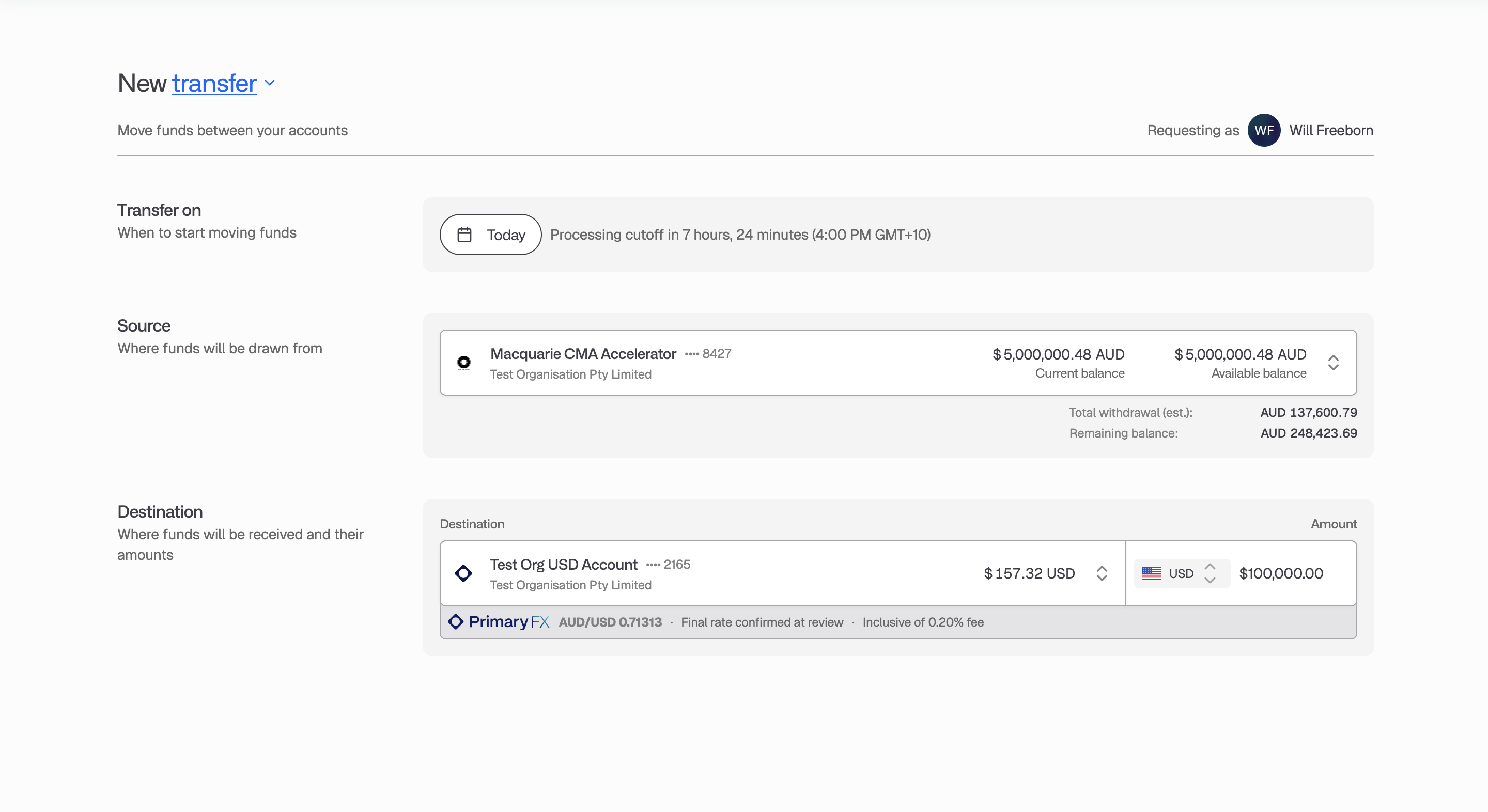
As soon as the currencies differ, a Primary FX badge appears under the amount field with the indicative rate for the pair, for example AUD/USD 0.65000, and the fee percentage it includes. If the entity does not have FX accounts, you will see the "Cross-currency transfers require FX accounts" notice instead and cannot continue.
Step 3. Enter the amount
By default the amount is in the source currency. The amount field has a currency toggle so you can enter it in the destination currency instead, which tells Primary how much you want to arrive. When you do this, the Total withdrawal under the source account is marked (est.) because the exact source amount depends on the final rate.
The destination-currency option is not available when:
the source account has a notice period of three or more days, or
the transfer is scheduled for a future date.
In those cases the amount must be in the source currency.
Click Review transfer.
Step 4. Confirm the execution plan
The review page lists each operation Primary will run. The conversion appears as a Convert row showing the two currencies, the rate, and the amounts.
Above the rows you will see one of two notes about the rate:
"Exchange rate will be secured on submission of this transfer. Converted amounts will be as quoted below." Primary has a firm quote. If the quote expires while you are on this page, Primary refreshes it automatically and the amounts update.
"The exchange rate will be confirmed when funds are received and processed by Primary." The conversion will be executed later, and the rate shown is an estimate.
Primary secures the rate on submission when all of the following are true. Otherwise the rate is confirmed later.
You have the FX trading permission.
The transfer is for today, not a scheduled future date.
The source account can be drawn on within one day.
Your organisation's approval policy does not require another user to review the transfer (or the payout, if the destination is an external beneficiary).
Click Accept & Submit. By submitting you approve the execution plan, including the FX conversion when funds are available.
What happens next
The conversion is booked as an FX trade and appears under FX > Trades alongside trades booked directly. The transfer legs appear under the accounts involved.
Fees and rates
Every rate Primary shows you already includes your organisation's FX fee, displayed as a percentage next to the rate. There is no separate fee line.
Timing
Value date. Spot trades settle on the value date shown as Estimated settlement by when you confirm the rate. This is typically within one business day.
Transfers. Transfers submitted before the processing cutoff shown on the Move funds page are processed the same day.
External deposits. If you fund a trade from outside Primary, the money must reach your FX wallet within two business days.
Troubleshooting
I cannot see FX in the navigation. The FX section appears when your organisation has an entity set up for FX trading, holds balances in more than one currency, or you have the FX trading permission. If none of these apply, ask an admin.
"Sorry, markets are closed right now". Your FX provider is not quoting. Click Create transfer in the dialog to set up the move as a transfer instead. Primary will execute the conversion when markets reopen. Please be aware that there may be a difference between the rate you're quoted when market's are closed and the rate that is available when markets are open.
"Your rate quote has expired". The firm quote countdown ran out before you booked. Click Refresh on the rate panel and confirm again.
My account is greyed out with "Insufficient liquidity". The account's notice period is too long to fund a trade directly. Transfer the money to an at-call account first, then book the trade from there.
The trade page shows "Deposit required". The money to fund the trade has not arrived in your FX wallet and no transfer is on its way. Click View deposit details and make the deposit.
I cannot enter the amount in the destination currency. See Step 3 of Method 2. Either the source account has a long notice period or the transfer is scheduled for a future date.